
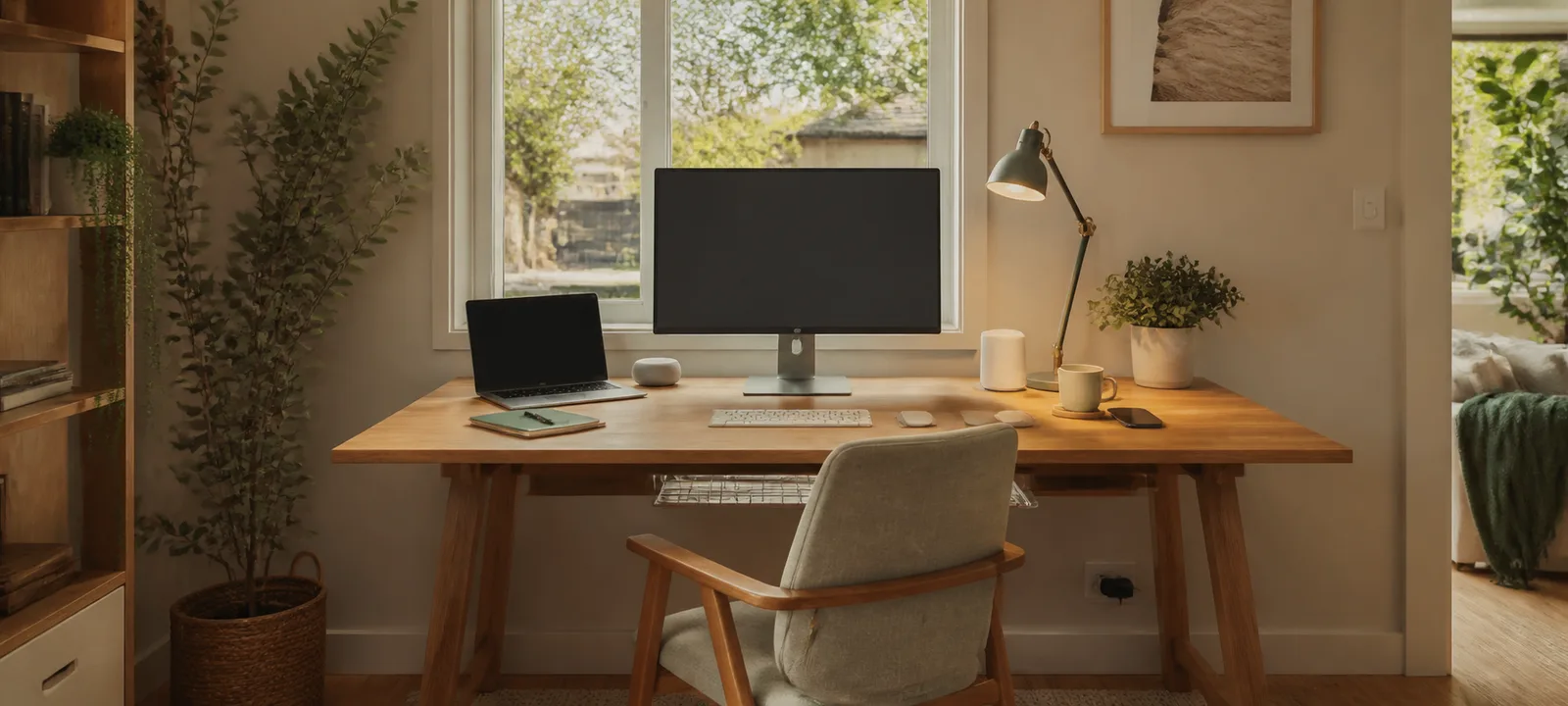
A smart home office should remove a repeated annoyance, not add another app, account and failure point to the workday. A light that is easier to control can be useful. A complicated routine that fails when the internet drops is not automatically an improvement.
Start with the complete home office setup, then identify one task worth simplifying. Check how each proposed device is powered, controlled, updated and reset before it joins the desk. The goal is a reliable workspace with sensible manual fallbacks, not the largest possible collection of connected products.
Our Take
Build the smallest smart layer that solves a real problem. Lighting controls, a clearly defined focus routine or a simple call setup can help when they work with equipment already in the room. Add one function at a time, use it for a week and keep it only if the routine becomes easier.
Compatibility is more than a badge on the box. Confirm the exact model, control method, account, phone, network and power requirements. Also decide what happens when the app, service or internet connection is unavailable. Every essential function should have a clear manual path.
Choose the Problem Before the Product
Write down the friction in plain language. The desk is too dim late in the day. The background light is inconsistent on calls. Several devices need to be set before focused work starts. A shared room must return to a calm household setting when work finishes. These are useful design problems because the result can be tested.
Avoid starting with a product category. A smart plug, hub or sensor has no value until its job is clear. Some problems need a better desk position, a longer charging lead, a labelled switch or a freestanding lamp instead of automation. Solve the physical layout first with the desk sizing and clearance guide.
- Name the repeated task or interruption.
- Record when it happens and who needs to control it.
- Define what a successful change should save or simplify.
- Check whether a non-connected solution would be clearer.
- Add one change before building a larger routine around it.
Make a Compatibility Map
List the phone, computer, router, work account and connected-home platform already used in the household. Beside each proposed device, record the required app, account, network connection, operating system and control method. Use current information for the exact model; similar names and later revisions can have different requirements.
Decide who needs access. A control that exists only on one person's phone will frustrate a shared office. Check whether another household member can use a physical button, a shared control or their own authorised account without receiving access to unrelated devices.
Keep a short setup record with the model, app, account owner, location and reset instructions. This is useful when a device changes rooms, the router is replaced or the workspace is packed down. Do not record passwords in an exposed note beside the desk.
Plan Power Before Automation
Map the monitor, computer, dock, lamp, chargers, router or hub and any call equipment. Separate devices that should remain powered from those that can be switched off. Do not place critical network equipment on a routine that disconnects the control system it depends on.
Check the stated ratings and instructions for every powered product and the equipment connected to it. Keep ventilation clear, power boards reachable and liquids away. Automation does not make an unsuitable load, damaged lead or poor cable route safe. The home office cable management guide helps map the route before clips, trays or boxes are added.
Treat Network Access and Privacy as Part of the Fit
A connected device may collect account, usage, voice, image or location information depending on its features. Read the current privacy and permissions information before setup. If the device includes a microphone or camera, decide when it should be active, how its status is shown and who can review or delete associated data.
Use unique account credentials and the security options supported by the service. Remove old household members or unused integrations, and include connected office devices in the household process for router changes and account recovery. Workplaces may also restrict which devices or recordings are allowed near confidential calls or material; follow the employer's requirements.
Avoid placing a voice-controlled device where private work conversations are routine unless that use has been considered and accepted. A physical mute control or a device without a microphone may suit the room better than a feature-rich option.
Use Smart Lighting to Support a Real Task
Lighting is one of the clearest places to use a simple routine. Separate the light needed on the work surface from ambient room light and light used on video calls. A timer or scene can make a repeated setting easier, but lamp position, glare and brightness still need to work physically.
Set the light manually first, then automate the proven arrangement. The home office lighting guide covers screen reflection, task position, controls, calls and nearby power before a lamp or monitor light is chosen.
Keep Calls and Focus Routines Small
A work-start routine might adjust one lamp, silence a personal notification source and start a focus timer. A call routine might change the task light and background light. Keep each sequence short enough that a failure is obvious and easy to correct.
Do not automate actions that could interrupt an update, damage equipment or conceal whether a device is still operating. Let computers, monitors and specialist equipment use their supported sleep and shutdown controls. If a device requires a particular shutdown process, follow it.
Give routines clear names based on the outcome, such as “desk light” or “call lighting”. Avoid building several overlapping routines that compete for the same device. Test them from the desk, the doorway and the position used by another person sharing the room.
Design the Manual Fallback First
The desk should remain usable if the internet, app, account or voice control is unavailable. Keep physical switches and buttons accessible. Know how to reconnect or reset each device, and avoid mounting a control where furniture must be moved to reach it.
Test the fallback deliberately. Disconnect the controlling phone from the network, use the room as a guest and simulate a router restart. If the light or other essential function becomes confusing, simplify the system before adding another device.
Plan for Shared Rooms and Rentals
In a shared room, connected controls should not remove ordinary household control. A partner, child, guest or housemate should still be able to turn a light on without finding an app. Agree on which routines can run automatically and when work settings should stop.
Renters can begin with removable controls, freestanding lamps and reversible cable management. Check the lease and obtain approval before drilling, replacing fittings or making permanent changes. Keep original parts and reset instructions together if a removable product will move to the next home.
Smart Home Office Buying Checklist
- Write down the exact task the device should simplify.
- Check whether a non-connected solution would be clearer.
- Confirm compatibility for the exact model and current platform.
- List required apps, accounts, permissions and network access.
- Decide who owns the account and who else needs control.
- Check whether core controls work without internet access.
- Find the physical control and reset process before installation.
- Map power, cable routes, ventilation and access.
- Review microphone, camera, location and data permissions.
- Check the manufacturer's current support and update information.
- Follow employer requirements around confidential work and calls.
- Test one device or routine before expanding the setup.
- Record the model, app, account owner and reset instructions.
- Remove unused integrations and old access when the setup changes.
Keep the Smart Layer Smaller Than the Workspace
A smart home office is successful when the technology becomes less noticeable. Start with room fit, light, power and storage, then add a connected control only where it makes a repeated task easier. Preserve manual control, document the setup and remove routines that create more work than they save.
Common Questions
What makes a home office smart?
A smart home office uses connected controls or routines to remove a repeated task, such as adjusting a light or starting a focus setting. It does not need every device to be connected. The useful setup is the smallest one that works reliably, protects privacy and still has a practical manual control.
What should I check before buying smart office devices?
Confirm the exact app, account and network requirements; compatibility with the phone or platform already used; whether core controls still work without internet access; where the device receives power; how updates and support are handled; and what data, microphone or camera access it requests. Check the current manufacturer information for the exact model rather than assuming products in the same range work alike.
Are smart plugs suitable for a home office?
Only use a compliant product within its stated ratings and instructions, and never use automation to bypass the normal shutdown, ventilation or safety requirements of connected equipment. Do not alter fixed wiring, plugs or leads. Keep power boards accessible, avoid overloading them and ask the relevant regulator or a licensed electrician when the boundary is unclear.