
Compare product fit and check retailer availability
A home office cable tangle grows one device at a time. The laptop gains a monitor and dock, then a lamp, webcam and phone charger all need power without making the desk impossible to move or clean.
Trace every device back to the available power points. Note what stays plugged in, what travels with the laptop and which connection needs regular access. Remove unused leads before buying anything to contain the remainder.
Trays, clips and reusable ties should support that map. Follow equipment and power-board instructions, keep connections reachable and avoid turning a flexible work zone into a desk that cannot be moved without dismantling it. This guide covers removable equipment leads and cable routes, not DIY fixed wiring. Use the Home Office setup hub when the wider desk, chair or storage plan still needs work.
Trace Every Device Back to Power
List every device used at the desk before buying organisers. That may include a laptop charger, monitor power cable, display cable, docking station, wired keyboard, mouse, desk lamp, phone charger, webcam, microphone, speakers, printer, scanner, router, modem, tablet charger, headphones, camera charger or external drive.
Separate devices that remain plugged in from cables used only occasionally. A monitor and dock may stay connected every day. A phone charger or external drive may only be used sometimes. Treating every cord the same can create a hidden knot behind the desk.
Remove unused, duplicate or mystery cables before buying anything. If the desk itself is still being planned, the home office desk setup guide covers desk depth, power access and equipment space in more detail.
Power Points, Power Boards and Everyday Access
Check power point locations before buying cable organisers. The desk should be planned around real power access, not imagined power access. A tidy tray will not help much if every cord still needs to stretch across the room.
Power boards should remain accessible enough to check, clean and use according to product guidance. Avoid loading too many devices onto one power board. Keep liquids away from powered items, and follow manufacturer instructions for chargers, power boards and electronics.
Moving furniture, grouping leads with removable wraps and fitting a non-electrical desk tray do not by themselves amount to fixed electrical work. Do not alter plugs, leads or wiring. Renters should avoid drilling, wall channels or permanent changes unless approved, and check surfaces before using adhesives.
Desk Setup, Monitors, Docks and Chargers
Monitor cables can be bulky and often need rear access. Docking stations can reduce daily plugging and unplugging, but they add their own cables. Laptop chargers need a route that does not fight with the chair, desk legs or lamp base.
Monitor arms may include cable routes, but check manufacturer instructions and weight limits before relying on them. Keyboard and mouse cables may need different paths from power leads. Video-call accessories can add more cords than expected.
Leave enough slack for normal desk movement. Avoid tying everything so tightly that equipment cannot be moved, unplugged or cleaned around. If the lamp shares the same surface, the home office lighting guide can help with lamp placement, power access and screen glare.
Lamps, Routers, Printers and Occasional Devices
Desk lamps add cords and need stable placement. Routers and modems may need accessible placement for normal household use, but the desk is not always the right place for them. Printers and scanners can create bulky cables and need space around them for paper, access and cleaning.
Connected controls can add a hub, bridge or always-powered device to the route. Check the smart home office setup guide before placing network equipment on a switched routine or fixing a control where it cannot be reached manually.
Occasional chargers should not permanently clutter the desk. A small charging zone can work better than loose cords spread across the surface, but it still needs to be easy to use. Label cables that look similar, especially where several black or white leads meet behind the desk.
Consider whether some devices belong outside the main desk zone. A printer, modem or spare charger may work better on a nearby shelf or cabinet if that keeps the desk easier to reset. For spare cables, printer supplies and small tech items, see the home office storage guide.
Match Each Organiser to One Job
- Reusable wraps: group cables that travel together and may change later.
- Labels: identify similar plugs at both ends.
- Sleeves: contain a bundle along a desk leg, with slower access to each lead.
- Clips: guide a single cord along a compatible surface.
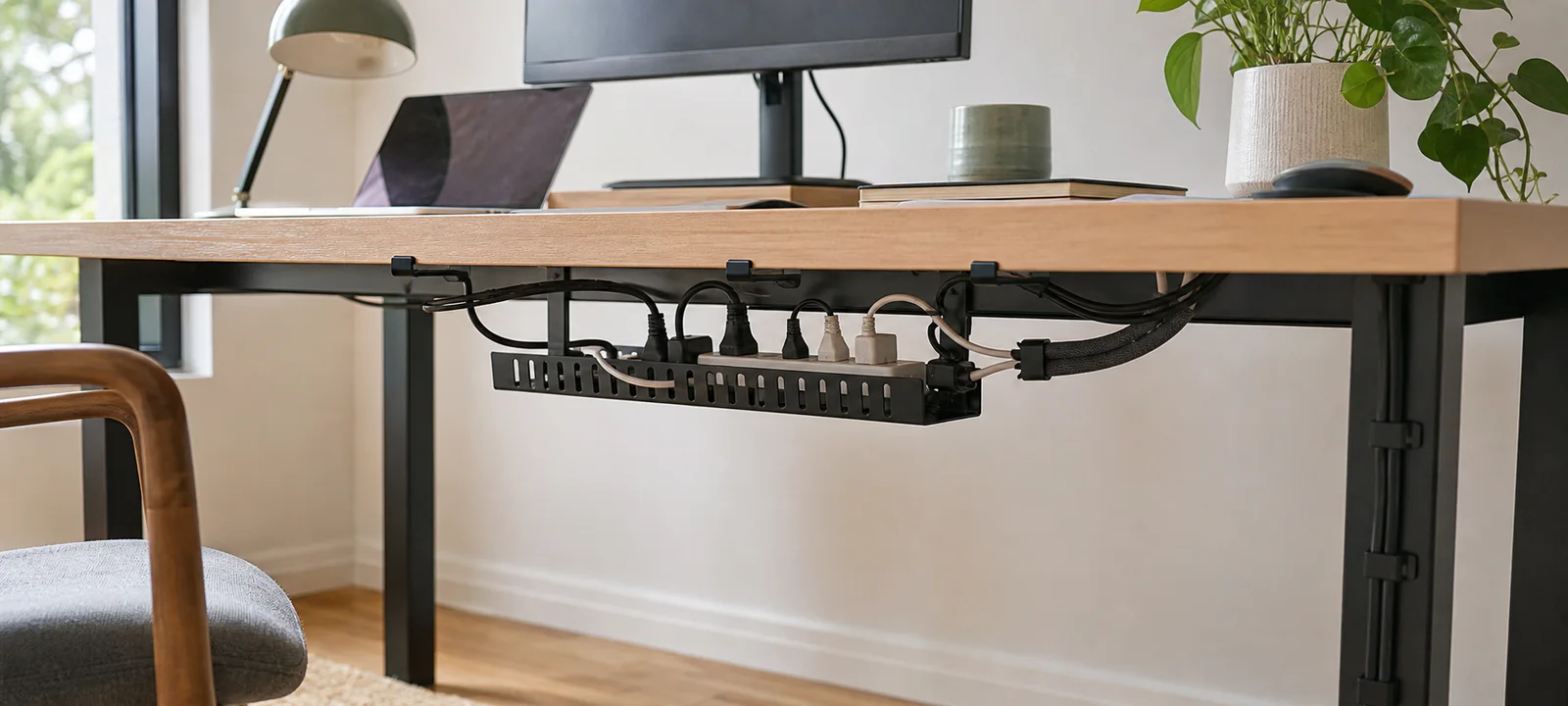
- Under-desk trays: lift power and cables from the floor when the desk suits the fixing.
- Cable boxes: reduce visual clutter only when plugs and the power board remain accessible and suitably ventilated according to their instructions.
If accessible power-board clutter remains
First remove unused leads, shorten the route with furniture placement and use reusable ties or labels where they solve the problem. If an accessible power board still creates visual clutter, compare these cable boxes by plug and adaptor clearance, ventilation, switch access and the chair's movement path.
Some links below are affiliate links. We may earn commission at no extra cost to you. Learn more.
Compare the fit, main drawback and retailer availability for each option.
| Option | May suit | Check first | Retailer prices and availability |
|---|---|---|---|
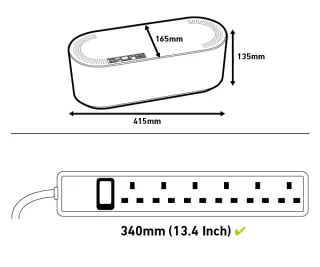 D-Line Large Cable Tidy Box Cable management box D-Line Large Cable Tidy Box Cable management box | larger power boards with several low-load desk plugs | It hides rather than shortens cables, and heat-producing power equipment still needs ventilation. | |
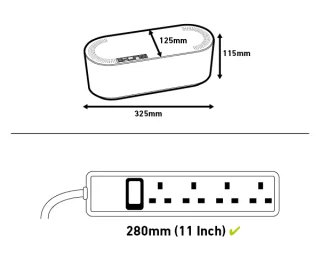 D-Line Small Cable Tidy Box Compact cable management box D-Line Small Cable Tidy Box Compact cable management box | simple desks with a short compact power board | The smaller internal volume will not accommodate large transformers or crowded boards. |

More about each option
Cable management box
D-Line Large Cable Tidy Box
A large ventilated enclosure for a measured power board and excess cable, intended to reduce visual clutter beneath a desk.
Check today’s price and postcode delivery:
We may earn commission through these links.
Good fit for
larger power boards with several low-load desk plugs
Check before buying
It hides rather than shortens cables, and heat-producing power equipment still needs ventilation.
Research-supported option
More suitability and drawbacks
May suit: larger power boards with several low-load desk plugs.
May not suit: oversized adapters or equipment requiring open airflow.
Drawbacks to consider:
- It hides rather than shortens cables, and heat-producing power equipment still needs ventilation.
- Current dimensions, variant, price, stock and seller details should be rechecked before ordering.
Evidence confidence: moderate. Last reviewed 22 August 2026. Research-based assessment; we have not tested this product firsthand.
Compact cable management box
D-Line Small Cable Tidy Box
A compact enclosure for a small power board after plug height, cable exits and desk access have been mapped.
Check today’s price and postcode delivery:
We may earn commission through these links.
Good fit for
simple desks with a short compact power board
Check before buying
The smaller internal volume will not accommodate large transformers or crowded boards.
Research-supported option
More suitability and drawbacks
May suit: simple desks with a short compact power board.
May not suit: multi-monitor setups with bulky power bricks.
Drawbacks to consider:
- The smaller internal volume will not accommodate large transformers or crowded boards.
- Current dimensions, variant, price, stock and seller details should be rechecked before ordering.
Evidence confidence: moderate. Last reviewed 22 August 2026. Research-based assessment; we have not tested this product firsthand.
Keep the Chair Zone Clear
Under-desk cable trays can lift cords off the floor, but they may require fixing to the desk. Renters, students and people using shared furniture should avoid permanent changes unless approved. Check product instructions and weight guidance before loading a tray.
Avoid routes that interfere with chair movement, feet, drawers or cleaning. A tray may keep cords off the floor but reduce knee space; clips may hold a lead in the path of a moving desk. The home office chair and seating guide can help when chair clearance affects where cables and trays can sit.
Small Rooms, Rentals and Shared Spaces
Small bedrooms may have desks close to wardrobes, beds or bedside tables. Dining-table work zones need pack-down cable routines. Shared rooms need cable setups that do not look like office clutter when work is finished. The shared home office spaces guide covers broader furniture, storage and reset checks for these rooms.
Apartments and hallway nooks may have limited power points and awkward desk positions. A simpler device setup can be more practical than trying to hide too many cords in a tight corner.
Pack-down workspaces need a home for chargers and cables when the desk is not in use. A pouch, drawer, basket or labelled box may suit occasional laptop work better than fixed clips under a shared table.
Test Access Before Securing the Route
Cable areas collect dust, crumbs and lint. Under-desk trays and cable boxes still need cleaning. If cords are hidden too tightly, vacuuming, wiping and moving devices can become harder.
Labelled cables make cleaning and equipment changes easier. Leave enough access to unplug or move devices when needed. Check cable areas when adding a new monitor, lamp, dock, charger or printer.
Rebuild the planned setup from unplugged before fixing clips or loading a tray. Confirm that the chair moves freely and that the most frequently changed device can be disconnected without disturbing everything else. For broader small-room reset ideas, see the home office setup guide.
Home Office Cable Checklist
- List every device used at the desk.
- Separate cables that remain plugged in from chargers used only occasionally.
- Map power points, the desk, chair, lamp and equipment.
- Keep cords out of walkways and the chair's movement path.
- Check front, side, rear and ventilation access.
- Check manufacturer instructions for electronics, chargers and power boards.
- Keep power boards accessible and do not overload them.
- Keep liquids away from powered items.
- Choose cable organisers that still allow access when equipment changes.
- Check whether adhesive products suit the desk, wall or rental surface.
- Avoid drilling or permanent changes in rentals unless approved.
- Check the local regulator and use the correctly licensed person for work that the jurisdiction regulates.
- Reconnect and test the setup before fixing the route in place.
Keep Power and Connections Reachable
A durable desk setup keeps power and frequently changed connections reachable. Short routes, reusable ties and clear labels usually adapt better than a tightly hidden bundle. Map the equipment first, then choose the smallest number of organisers that solve the real problem.
Common Questions
How do I organise cables under a home office desk?
Trace each monitor, computer, dock, lamp and charger to power before adding trays or clips. Group cables only where their routes and movement needs match, leave connections reachable, and keep the chair zone clear. Test whether equipment can be unplugged or moved before securing the route under the desk.
Where should a power board go in a home office?
Place it where its switch, plugs and lead remain accessible without entering the chair's movement zone or a walkway. Account for the board's full size and every adaptor attached to it. Do not bury it inside a decorative cable box unless the product instructions and ventilation needs allow that setup.
How can cable management work with a temporary or shared office?
Keep the route flexible and make pack-down leads easy to identify. Reusable sleeves, clips or a dedicated tech container may suit equipment that moves, while permanent fixtures can make changeover harder. Give the working setup and the stored setup a clear cable plan so neither leaves loose leads across the room.